Community Help

How to Use The ADR Community

A quick visual guide to getting around.
Find your way, post and reply, manage notifications, save posts and get back to The ADR Hub.

8 quick steps·2-minute read

Using the Kajabi app? Read this first ↓

1

Find your way around

The blue menu bar at the top of every page takes you anywhere on the site: ADR Hub, The Complete Journey, Resources and more. On a phone, tap ☰ at the top right to see the links.

The menu on the left lists every room.
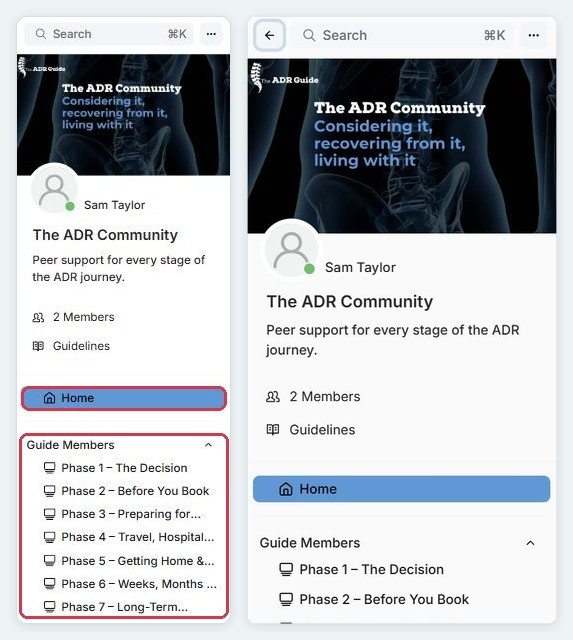
  1. Home shows the latest posts from all rooms.
  2. Scroll down the menu to see all the rooms.
  3. Open to All: Introductions, General Questions, Shared Links.
  4. Guide Members: one room for each phase (full Guide members).
On a phone, tap ☰ Rooms at the top left to open the menu.
The Community menu on desktop and phone
2

Write a post

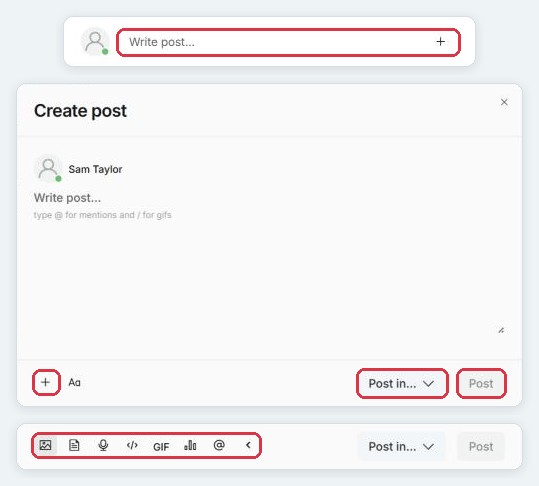
  1. Click the Write post… box at the top of the page.
  2. Type your post.
  3. To add a photo, file, GIF, poll or voice note, click + at the bottom left, then choose from the icons.
  4. Posting from Home? Choose the room under Post in…. Then click Post.
New here? Start in Introductions and say hello.
Write post box, Create post window and the + options
3

Reply and react

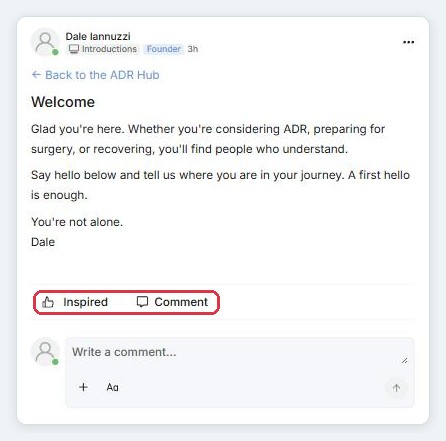
  1. Click Comment under any post to reply.
  2. Click Inspired to show support.
  3. Type @ and a name to mention someone.
A post with Inspired and Comment
4

Notifications

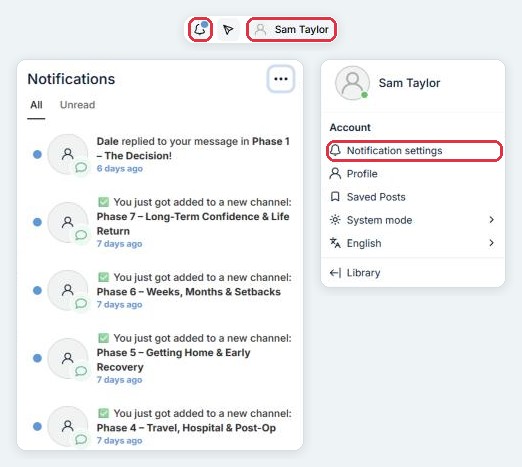
The bell at the top right of the Community shows replies to your posts and other updates. Switch between All and Unread.

To choose which notifications you get (email, in-app or push): click your name at the top right of the Community, just below the blue menu bar → Notification settings. To return, click Back at the top left.
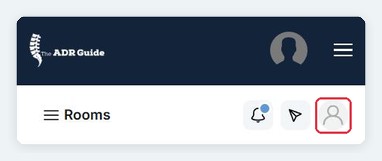
On a phone held upright, tap the grey person icon just below the blue menu bar, not the one in it.
Phone: the grey person icon below the blue menu bar
Notifications panel and the menu under your name
5

Save and search

Save a post: click ⋯ on the post → Save post. Find it later under your name → Saved Posts.

Search: use the Search box (computer) or the magnifying glass (phone).
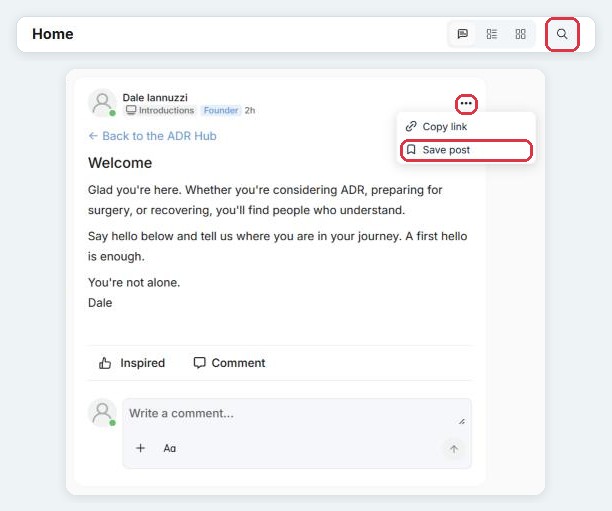
Search, and the post menu with Save post
6

Your profile

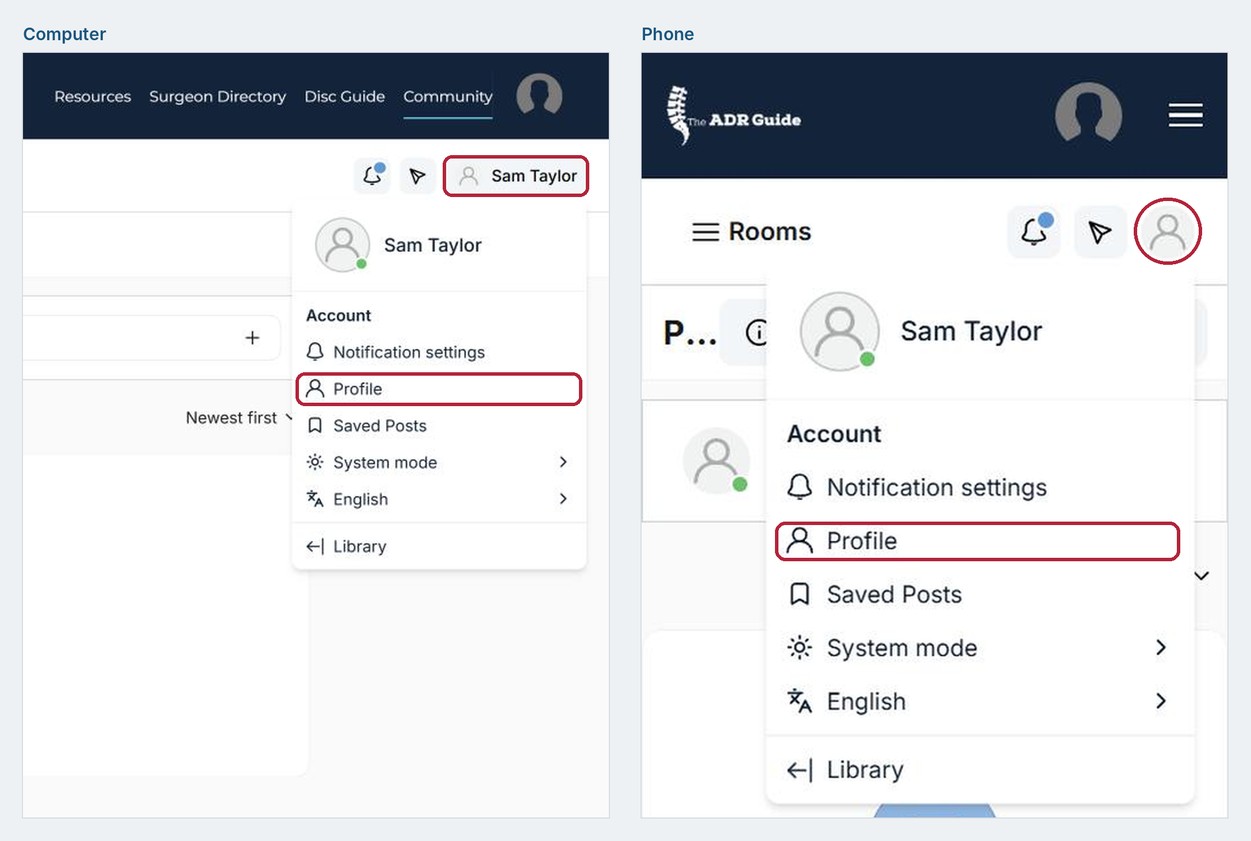
  1. In the Community, click your name at the top right. This opens the Account menu.
  2. Select Profile → ✎ Edit. This opens the Account Information page.
  3. Adding your details is optional. Scroll down to Avatar to add a photo, and to Social Profile for a short bio and your location. Then click Save at the top.
  4. To return, click Back at the top left.
On a phone held upright, tap the grey person icon just below the blue menu bar, not the one in it.
Your name (computer) or the grey person icon (phone) opens the Account menu with Profile
7

Opened the Community from an email?

Links in Community emails (replies, comments, mentions, messages) open the Community on its own, without the blue menu bar. To get back to The ADR Hub:
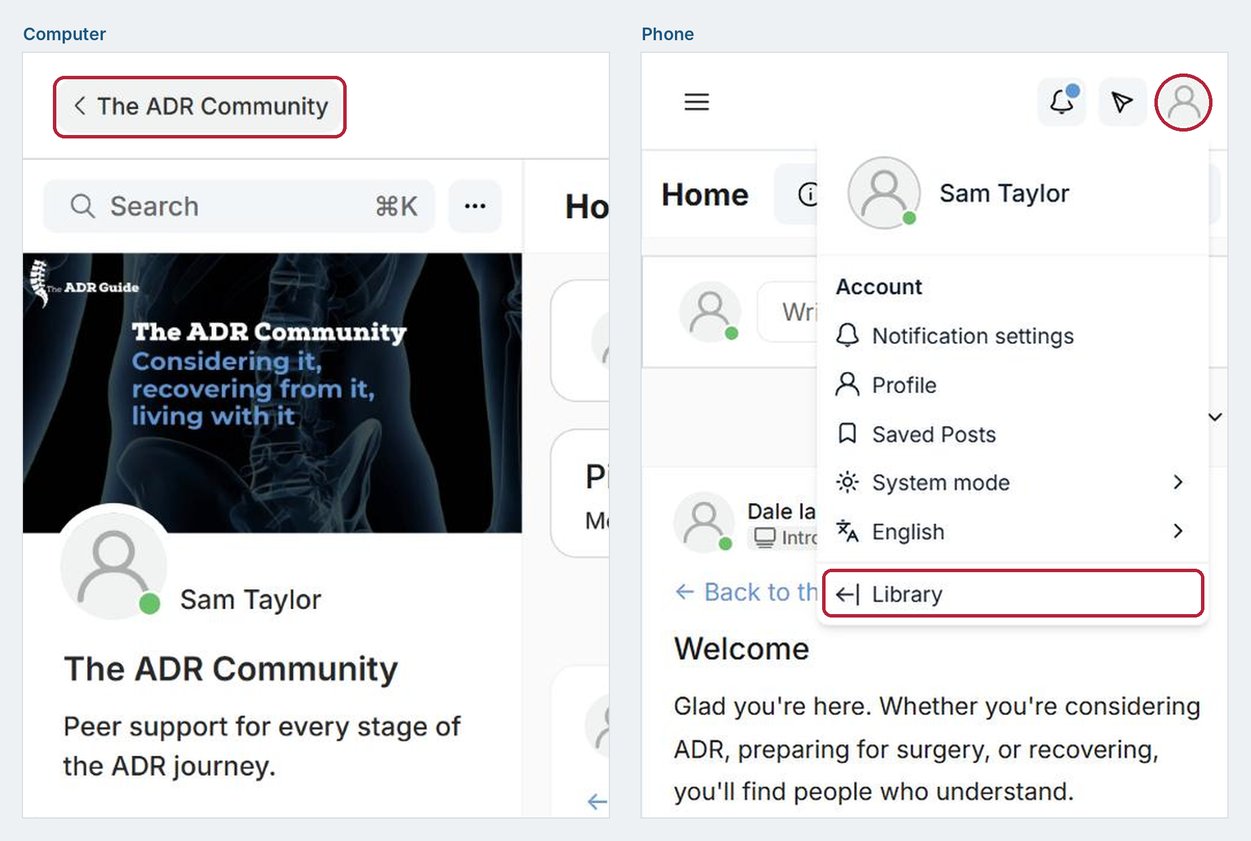
  1. Computer: click ‹ The ADR Community at the top left.
  2. Phone: tap the grey person icon at the top right, then select Library.
If your phone asks to open another app, tap Don’t allow to stay in your browser.
Community opened from an email: The ADR Community button (computer), grey person icon and Library (phone)
8

Send a private message

Full Guide members can message another member privately.
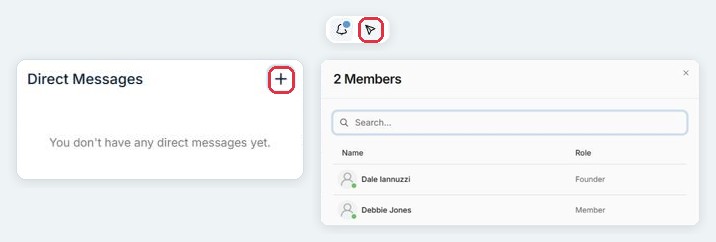
  1. Click the paper-plane icon at the top right of the Community, next to the bell.
  2. Click +.
  3. Search for the member, select their name, then type your message.
Private messages are still covered by the Community Guidelines.
Direct Messages and the member list

Using the Kajabi app?

For the full ADR Guide experience, always use members.adrguide.com in your phone’s browser, logged in with the same email.
Bookmark it, or add it to your Home Screen for one-tap access.
iPhone (Safari): tap Share at the bottom of the screen, then Add to Home Screen.
Android (Chrome): tap next to the address bar, then Add to Home screen.

The full ADR Guide website includes: The ADR Hub, Module Videos, Resources, the Surgeon Directory and the Disc Guide.
The Kajabi app has limited features: only the Module Videos and the Community work there.

Still stuck?

Email us and we'll help.

support@adrguide.com
Back to the Community